For many organizations, corporate credit cards simplify purchasing, but they often create a new challenge when it’s time to reconcile expenses. Employees scramble to find receipts, finance teams chase down missing documentation, and month-end close becomes a time-consuming manual process.
DynamicPoint’s latest enhancement to EasyEXP365 Expense Management transforms this experience through mobile receipt capture, AI-powered OCR, automated credit card matching, and intelligent Power Automate reconciliation workflows.
The Problem with Corporate Cards
Most organizations handle corporate credit cards one of two ways: employees submit receipts manually and hope everything lines up, or finance teams export a statement and spend hours cross-referencing it against expense reports. Neither approach scales well, and both are error-prone.
The core issue is timing. The receipt is issued at the time of purchase. The credit card statement arrives days or weeks later. Bridging that gap, reliably and automatically, is where most expense management solutions fall short
How to Solve the Reconciliation Problem
EasyEXP365, together with Azure AI, handles corporate credit card reconciliation end-to-end. This includes the moment an employee photographs a receipt, to the automatic submission of a matched credit card item. Here’s how it works.
Step 1: Capture the Receipt on the Spot
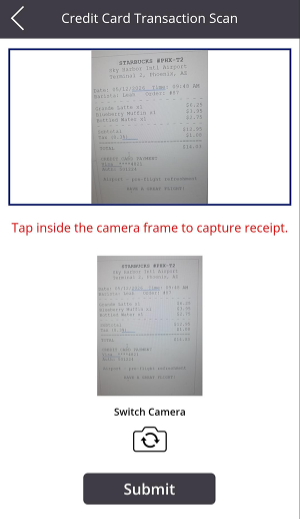
Using the EasyEXP365 mobile Power App on any Android or iOS device, employees photograph their receipt at the point of purchase. No manual data entry is required.
The app’s built-in OCR engine reads the receipt image and automatically extracts:
Vendor name
Transaction date
Amount
Line items (e.g., individual food or product items)
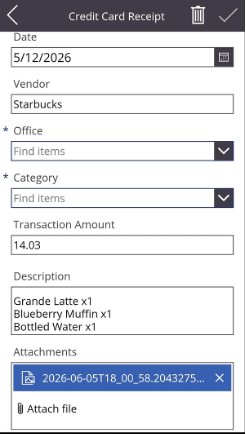
All of this is populated directly into a Credit Card Receipt record. The scanned receipt image is automatically attached as supporting documentation. The employee simply selects any additional classification data needed (cost center, office, project) and saves; that’s it.
Step 2: Load the Monthly Credit Card Statement
A daily live feed or automated file upload integrates the statement transactions into EasyEXP365. This can be done through an automated import or manually, depending on the organization’s preference. Each transaction record includes the transaction date, the vendor’s name as it appears on the bank statement, and the charged amount.
Step 3: Auto-Matching Runs Automatically
Once the statement is loaded, EasyEXP365’s matching engine gets to work. For each credit card transaction, the system scans all pending receipts and attempts to find a match. A match is confirmed when all three of the following criteria are met simultaneously:
Amount — the transaction amount matches the receipt total exactly
Employee — the cardholder matches the employee who submitted the receipt
Date — the transaction dates are within a 2-day window of each other
When a match is found, the system automatically populates the Credit Card Item record with the Office, Category, Description, and the receipt attachment, and submits it without any further action from the employee.
Step 4: Automated Email Notification
After processing, each cardholder receives an automated status email summarizing their transactions for the period. The email clearly separates:
Processed Transactions — auto-matched and submitted, no action needed
Pending Transactions — unmatched items that still require attention
A direct link to the Expense Mobile Application is included, so employees can act immediately on any outstanding items.
What About Transactions That Don’t Auto-Match?
Not every transaction will have a corresponding captured receipt, as sometimes receipts get lost, or the vendor name on the bank statement may differ from what the employee entered. For these cases, EasyEXP365 provides a guided matching workflow to obtain the employee’s assistance in reconciling the exceptions.
From the Credit Card Transactions list in the app, the employee taps on an unprocessed transaction. A match popup displays all available unmatched receipts, each with a date, vendor, amount, and receipt thumbnail. The employee taps Match on the correct entry, and the system links the records, populates all fields, and confirms with a success notification.
If no receipt exists, the employee can document the reason in the “Reason for Missing Receipt” field and submit it directly. No transaction goes unresolved.
The End Result
What used to require significant manual effort from both employees and finance teams now happens in a mostly automated fashion:
Step
Responsible
Employee photographs receipt at point of purchase
Employee
OCR extracts all receipt data automatically
System
Credit card transactions uploaded
System
Matching engine reconciles transactions to receipts
System
Matched items are auto-submitted; email sent to cardholder
System
Unmatched items manually resolved by employee
Employee
Monthly expense report submitted via Web App
System
The result is a faster close, a complete audit trail, and far less back-and-forth between employees and finance.
Built on Microsoft 365
Like everything in EasyEXP365, this capability is built natively on Microsoft 365, including Azure AI, SharePoint, Power Apps, and Power Automate. There is no separate system to manage, no new technology to adopt, and no data leaving your Microsoft tenant.
To learn more about how EasyEXP365 can help your organization modernize employee expense management with Power Apps and AI-driven automation, visit DynamicPoint.