Steps 1-4 should be followed directly from the referenced article.
Step 1 – Create an Azure AD app
The following notes apply to step 1:
For Redirect url use: https://portal.dynamicpoint.com
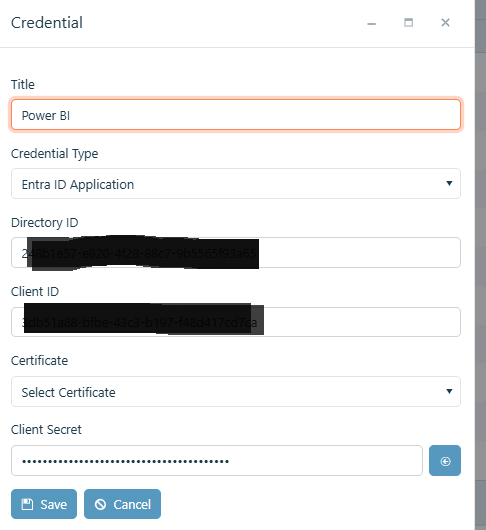
Note: Make sure you copy and save the Application ID and Secret which are provided by the end of the registration. You can retrieve the Application ID later from the app registration in Azure, but if you lose the secret you will have to create a new one manually.
Steps 3-4
Directly follow the Microsoft support article.
Step 5
Skip this step and move on with portal configuration.
3 Configure Power BI Report in DynamicPoint Portal
Create the Report Credential
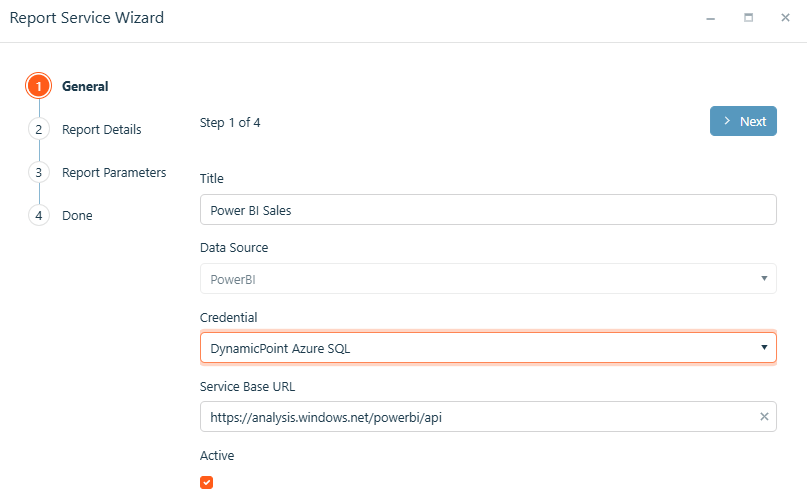
Create the Report Service
Service Based URL – Use https://analysis.windows.net/powerbi/api