
1 Overview
This document provides an in-depth description of how to configure the DynamicPoint Customer/Vendor Portal report printing functionality for Dynamics Business Central.
2 Report Printing Deployment
The following will outline the configuration of report printing functionality. When setup, the user is able to print a range of Dynamics BC reports from the Customer/Vendor portal.
Print Service Configuration
- From the API configuration section, navigate to Report Services.
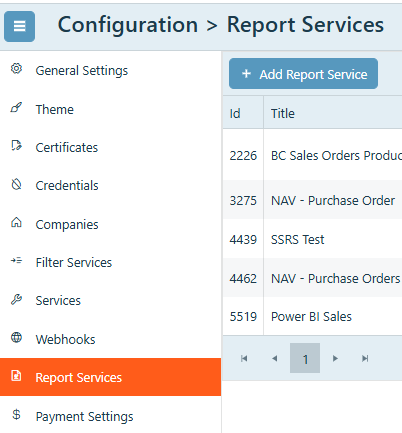
- Follow instructions on creating a new report service here.
- For data source, use Business Central
- Report Service URL – The first GUID is the tenant ID. Be sure to use api/v2.0 version.
https://api.businesscentral.dynamics.com/v2.0/<Tenant ID>/<environment name>/api/v2.0/ - Endpoint – One of the following navigations: salesInvoices, salesQuotes, salesCreditMemos, purchaseInvoices. These four are the only that are currently supported by Business Central. Please use the values as they are spelled here.
Note: Purchase invoice and Sales Credit Memos must be posted before generating the PDF document, otherwise the following error will be encountered:

3 Sales Report Extension
DynamicPoint has added Business Central functionality for including report integration on sales orders. As this functionality is not included with base Business Central, it must be added as an extension. This is only required if generating sales order reports from the portal is desired.
Download
- The Business Central extensions can be downloaded here.
Sales Order PDF
Install the Extension
- In Dynamics 365 Business Central, use search to open the Extension Management page.
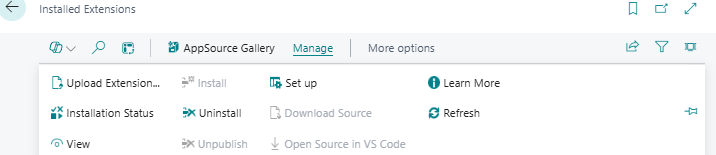
In the Extension Management window, you can view the extensions that are published to your server. For each extension, you can see the current installation status. - Click manage and select upload extension
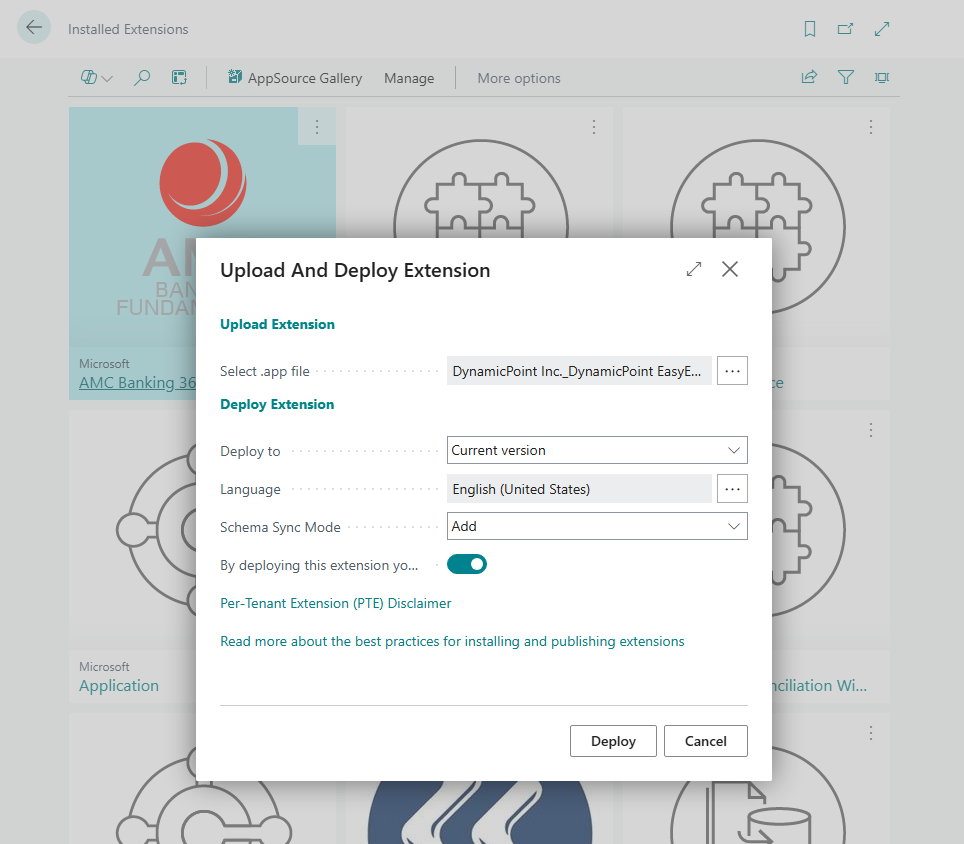
- Select the location of the downloaded files
- Click deploy
Print Service Configuration
The configuration is similar to any of the standard report configurations detailed above.