1 Overview
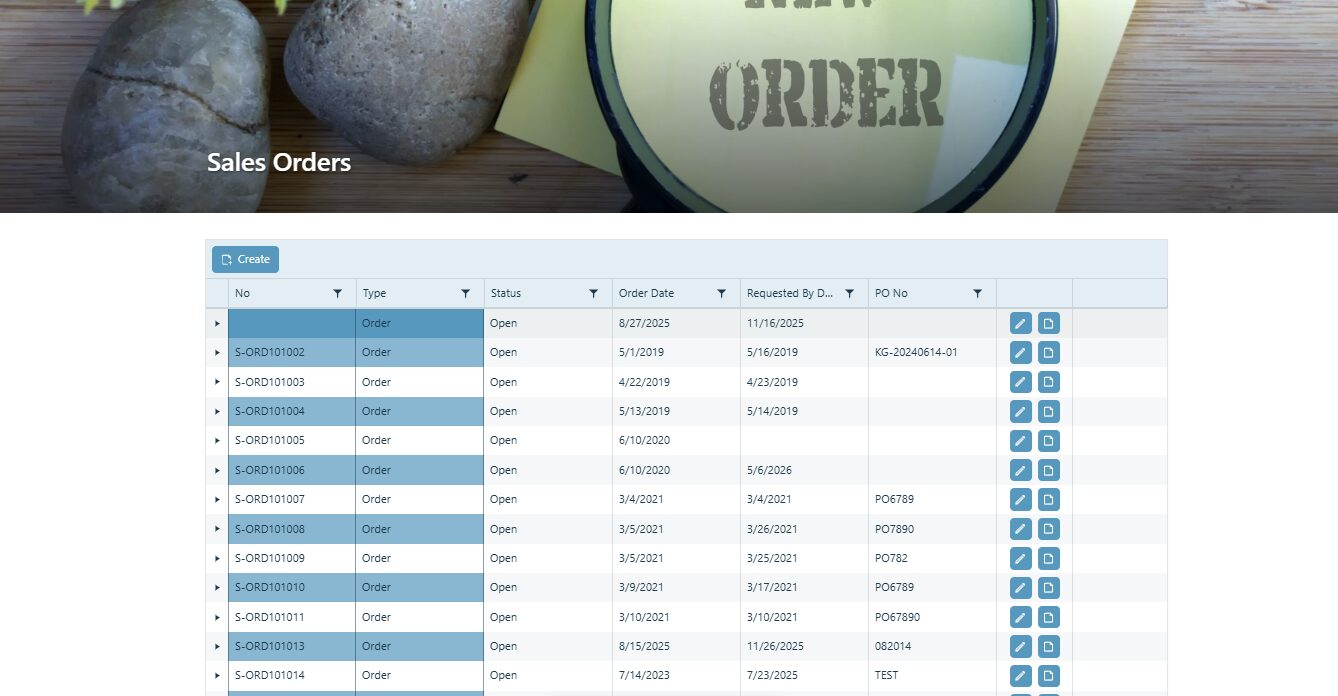
In order for DynamicPoint portal services to render data in the SharePoint host web, a portal web part has been created. This web part will display any service data on the host SharePoint web site.
2 Page Configuration
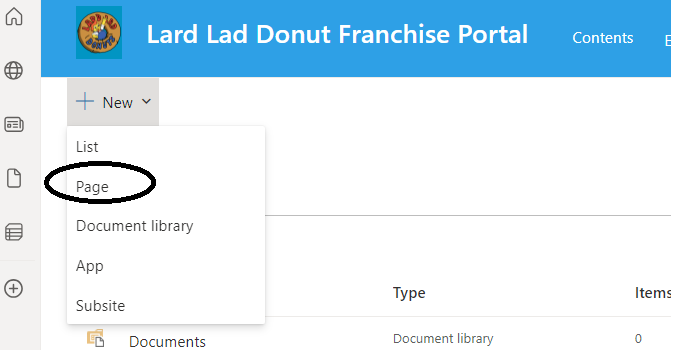
Create a New Page
From Site Contents, create a new Page in SharePoint.
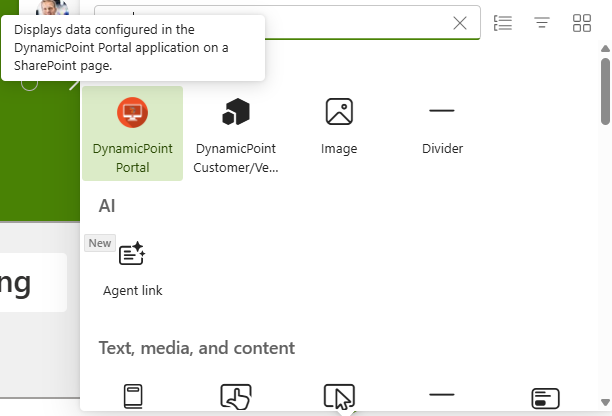
Adding the Portal Web Part
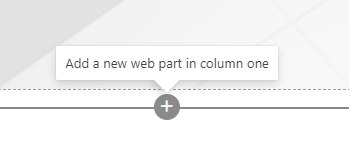
Edit the new page and click the plus control to add a web part to the page.
Configuring the Web Part
Edit the web part after it has been added to the page.
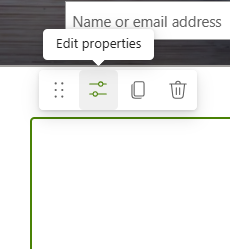
App Configuration
An edit section will display that contains all of the configuration options for the portal web part.
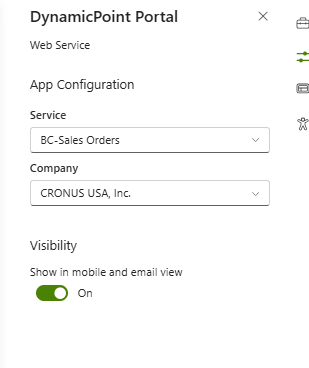
The settings are as follows:
- Service – The service configured in the portal configuration for which you want the web part to display
- Company – The company configured in the portal configuration for which you want the web part to display
Features
The next page contains all of the web part features.
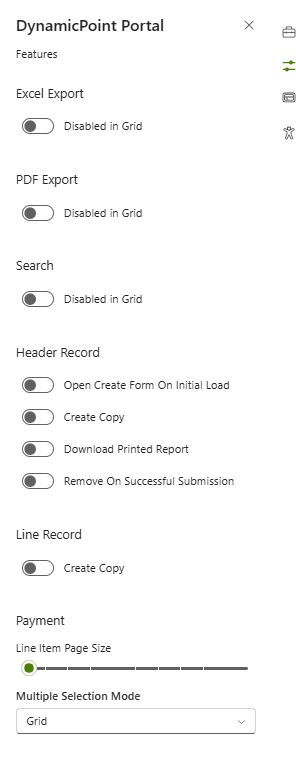
- Excel Export – Enables the ability for service data to be exported to Excel.
- PDF Export – Enables the ability for service data to be exported as a PDF.
- Search – Enables the search bar in the service web part.
- Open Create Form on Initial Load – Opens the create dialog automatically.
- Create Copy – Allows copying existing records on creation.
- Download Printed Report – When a report is generated, it is downloaded instead of just opening
- Remove on Successful Submission – Hides records that have been submitted.
- Create Copy – Allows copying existing line records on creation
- Line Item Page Size – Adjusts the size of the payment screen line items.
- Multiple Selection Mode – Defines if the multiple selection of items is performed on grid or form.
Appearance
The next page contains the settings that impact the web part appearance.
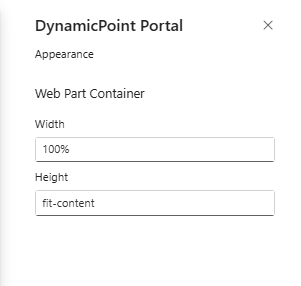
- Width – Adjusts the width of the web part
- Height – Select between fit-content or fit-auto.
3 Confirmation
After the page is saved and published, the service results should now display on the page.